- Benefits of Apple Pay
- Step 1: Ensure Compatibility
- Step 2: Open the Wallet App
- Step 3: Add a Payment Method
- Step 4: Add a Card
- Step 5: Confirm Your Information
- Step 1: Make Sure Your Device is Connected
- Step 2: Select the Payment Method
- Step 3: Tap the Payment Terminal
- Step 4: Confirm Your Payment
- Tokenization
- Encryption
- Two-Factor Authentication
- Use Apple Pay for Small Purchases
- Use Apple Pay for Online Transactions
- Use Apple Pay for Recurring Payments
- Use Apple Pay for Travel
- Issues with Adding a Payment Method
Unlock the Power of Seamless Payments: Mastering Apple Pay
In today's fast-paced digital age, convenience and speed are paramount when it comes to making transactions. Apple Pay has revolutionized the way we think about payments, offering a seamless and secure experience that has captured the attention of millions worldwide. Whether you're a tech-savvy individual or a busy professional, understanding the ins and outs of Apple Pay is essential for harnessing its full potential. In this comprehensive guide, we'll delve into the world of Apple Pay, exploring its features, benefits, and practical applications.
With Apple Pay, you can make contactless payments using your iPhone, Apple Watch, iPad, or Mac, eliminating the need for cash, credit cards, or other payment methods. This convenient feature has made Apple Pay a go-to solution for those seeking a hassle-free payment experience. But what makes Apple Pay so special? In this article, we'll examine the key aspects of Apple Pay, providing you with a thorough understanding of this cutting-edge payment system.
What is Apple Pay?
Apple Pay is a mobile payment service developed by Apple Inc. that allows users to make contactless payments using their compatible Apple devices. The service uses Near Field Communication (NFC) technology, which enables the transfer of data between a device and a payment terminal. This technology is designed to be secure, fast, and convenient, making it an attractive option for consumers and merchants alike.
Benefits of Apple Pay
Apple Pay offers a range of benefits that make it an attractive payment solution. Some of the key advantages include:
• Fast and convenient: Apple Pay enables users to make contactless payments using their Apple device, eliminating the need for cash or other payment methods.
• Secure: Apple Pay uses tokenization, which replaces sensitive payment information with a unique token, ensuring that your financial data remains secure.
• Easy to use: Apple Pay is easy to set up and use, with a user-friendly interface that makes it simple to make payments.
• No need to carry cash: With Apple Pay, you can say goodbye to carrying cash, reducing the risk of theft or loss.
How to Set Up Apple Pay
Setting up Apple Pay is a straightforward process that can be completed in a few simple steps. Here's a step-by-step guide to get you started:
Step 1: Ensure Compatibility
Before setting up Apple Pay, ensure that your Apple device is compatible with the service. Apple Pay is available on iPhone 6 and later, Apple Watch Series 1 and later, iPad Pro, iPad Air 2 and later, and Mac with Touch ID.
Step 2: Open the Wallet App
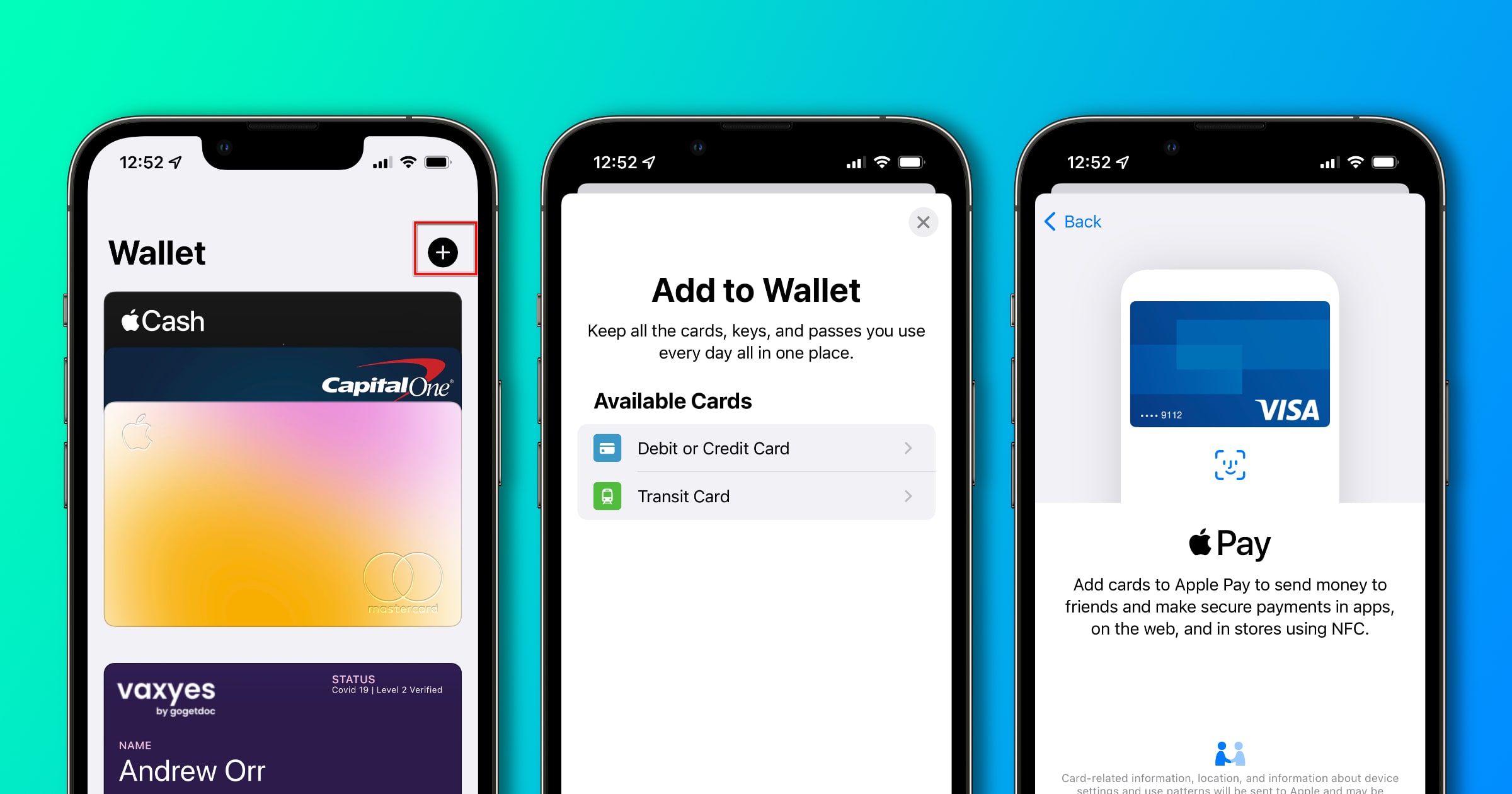
To set up Apple Pay, open the Wallet app on your Apple device. If you don't have the Wallet app, you can download it from the App Store.
Step 3: Add a Payment Method
Tap the "+" icon in the top-right corner of the Wallet app to add a payment method. Select "Continue" and then choose your preferred payment method, such as a credit or debit card.
Step 4: Add a Card
Once you've added a payment method, you'll need to add a card. Tap the "+" icon and select "Add Card." Follow the on-screen instructions to add your card information.
Step 5: Confirm Your Information
Review your card information and confirm your details. Make sure that your card information is accurate and up-to-date.
How to Make a Payment with Apple Pay
Making a payment with Apple Pay is easy and convenient. Here's a step-by-step guide:
Step 1: Make Sure Your Device is Connected
Ensure that your Apple device is connected to the internet and that the Wallet app is open.
Step 2: Select the Payment Method
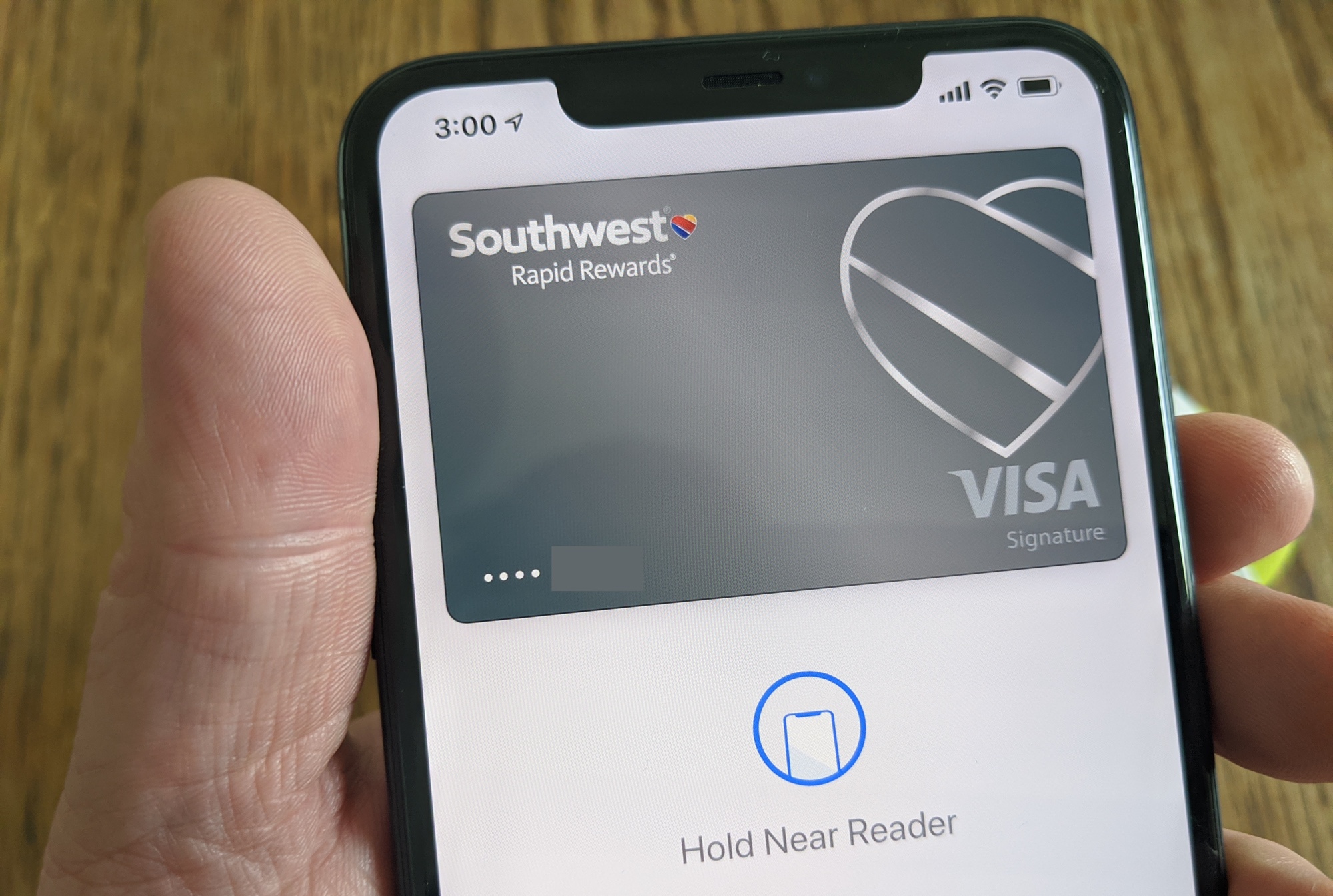
Select the payment method you want to use. This may be your default payment method or a specific card you've added.
Step 3: Tap the Payment Terminal
Tap the payment terminal, such as a credit card reader or a contactless payment terminal.
Step 4: Confirm Your Payment
Confirm your payment by tapping the "Pay" button. Your payment will be processed, and you'll receive a confirmation on your device.
Apple Pay Security Features
Apple Pay uses a range of security features to protect your financial data. Some of the key security features include:
Tokenization
Apple Pay uses tokenization to replace sensitive payment information with a unique token. This token is not linked to your actual payment information, providing an additional layer of security.
Encryption
Apple Pay uses encryption to protect your payment information. This ensures that your data is secure and cannot be intercepted or accessed by unauthorized parties.
Two-Factor Authentication
Apple Pay offers two-factor authentication, which requires a second form of verification, such as a fingerprint or password, to access your payment information.
Tips and Tricks for Using Apple Pay
Here are some tips and tricks to help you get the most out of Apple Pay:
Use Apple Pay for Small Purchases
Apple Pay is perfect for small purchases, such as buying coffee or snacks. It's quick, easy, and convenient.
Use Apple Pay for Online Transactions
Apple Pay can be used for online transactions, making it a convenient option for online shopping.
Use Apple Pay for Recurring Payments
Apple Pay can be used for recurring payments, such as subscription services.
Use Apple Pay for Travel
Apple Pay can be used for travel, eliminating the need for cash or credit cards.
Common Issues with Apple Pay
While Apple Pay is generally a reliable payment system, there are some common issues that users may experience. Here are some common issues and solutions:
Issues with Adding a Payment Method
If you're having trouble adding a payment method, check that your device is connected to the internet and that the Wallet app is open. Make sure that your card information is accurate and up-to-date.
Recent Post
Unlocking The Secrets Of Menopause: Expert Insights On Navigating Life After 40 With Paolo Tantoco
Tensions Rise As Trump Officials Defend Tariffs Amid Market Volatility And Warnings For Savers And Retirees
Rosie O'Donnell Teases Trump Move, Posts Disruptive Selfie From Abroad
Wings For The Win: Capitals Edge Ducks 7-4 In Thrilling Matchup
Ducks Fall Short: Key Takeaways From Thrilling 7-4 Loss To Capitals
Article Recommendations
- Unveiling The Enigmatic Conor Mason Bellamy: A Journey Into The Heart Of A Foreign Correspondent
- Linda Kozlowski: From "Crocodile Dundee" Star To Environmental Advocate
- Tony Hinchcliffe's Marital Status: Unveiled!